Managing Docker Containers with Portainer
Advanced
Beginner
5 min read
Published: May 7, 2026
Was this helpful?
Help us improve our community guides.
Help us improve our community guides.
Adding External Storage to Your Localnode — Step-by-step guide for your LocalNode.
Adding Smart Home Devices to Home Assistant — Step-by-step guide for your LocalNode.
Backing Up Your Entire Localnode Configuration — Step-by-step guide for your LocalNode.
⚠️ Administrative Tool — changing settings here can break your server
Under the hood, every single app on the LocalNode runs inside its own isolated "container" using Docker. Portainer is the master control panel that lets you see, stop, start, and debug these containers.
Docker is what makes LocalNode so reliable. Because Jellyfin and Nextcloud are in separate containers, if Nextcloud crashes, Jellyfin keeps running perfectly. Portainer gives you a visual dashboard to manage this underlying infrastructure without needing to use the command line.
http://localnode.local.In the left sidebar, click Containers. You are now looking at the heartbeat of your server.
0.0.0.0:8096 -> 8096/tcp on the Jellyfin row, that means you can access Jellyfin by typing port 8096 in your browser.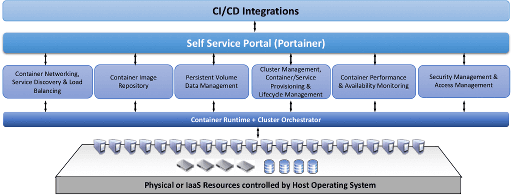
If an app is behaving strangely (e.g., Jellyfin won't play a specific movie), checking the logs is the first step.
Just like restarting your computer, restarting a single container fixes 90% of weird bugs.
This restarts ONLY Nextcloud. Anyone watching a movie on Jellyfin won't even notice.
💡 Tip: You can also see how much RAM and CPU an app is using by clicking the Stats icon (the tiny graph). If your LocalNode is running slowly, check here to see if a specific app is hogging resources.
Need help? Email hello@localnode.tech or visit localnode.tech/contact.