LocalNode
How it worksDemoAppsPricingFAQShop now
← All guides
Home/Community/Adding Smart Home Devices to Home Assistant

Adding Smart Home Devices to Home Assistant

Advanced
Beginner
5 min read
Published: May 7, 2026

Was this helpful?

Help us improve our community guides.

In this guide

  • Overview
  • Step 1: Using Official Integrations
  • Step 2: Installing Community Integrations (HACS)
  • Step 3: Connecting Zigbee or Z-Wave USB sticks
  • Next Steps

Need direct help?

LocalNode Care Plan members get priority remote support.

Email Support →

More in Advanced

Adding External Storage to Your Localnode

Adding External Storage to Your Localnode — Step-by-step guide for your LocalNode.

5 min read

Backing Up Your Entire Localnode Configuration

Backing Up Your Entire Localnode Configuration — Step-by-step guide for your LocalNode.

5 min read

Connecting Home Assistant to Localnode

Connecting Home Assistant to Localnode — Step-by-step guide for your LocalNode.

5 min read
LocalNode

Plug-and-play home server. Your data, your hardware, your rules.

Product

How it worksDemoAppsCommunityPricingFAQ

Support

ContactShipping & ReturnsTrack Order

Legal

Privacy PolicyTerms of ServiceShipping Policy
© 2026 LocalNode. Built for people who value their privacy.Denton, TX · hello@localnode.tech

While Home Assistant automatically discovers many devices, there are over 2,000 specific brands (like Nest, Ring, and Ecobee) that require manual configuration to pull into your LocalNode dashboard.

Overview

In Home Assistant, device connections are called Integrations. When you add the "Ecobee" integration, Home Assistant connects to the Ecobee API, pulls down your thermostat, and creates "entities" (like current temperature, target temperature) that you can control.

Step 1: Using Official Integrations

Most popular brands are officially supported and built directly into Home Assistant.
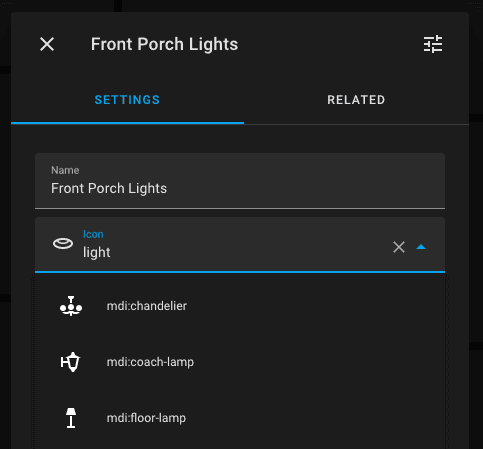
  1. Open your Home Assistant dashboard.
  2. In the left sidebar, click Settings > Devices & Services.
  3. In the bottom right corner, click the blue + Add Integration button.
  4. Search for the brand of your device (e.g., "TP-Link Kasa" or "Nest").
  5. Click the brand and follow the prompts. Depending on the device, you may need to press a physical button on the hardware, or it may open a window asking you to log into that brand's cloud account to grant permission.
Home Assistant Settings UI illustrating picker workflows comparable to choosing integrations under Devices & Services.
Source: Home Assistant documentation (CC BY-NC-SA 4.0). Add integrations via Settings → Devices & Services → Add Integration.

Step 2: Installing Community Integrations (HACS)

If your brand is obscure or very new, it might not be in the official list. Fortunately, the Home Assistant community creates thousands of custom integrations via a tool called HACS (Home Assistant Community Store).

  1. Note: LocalNode comes with HACS pre-installed to save you time.
  2. In the left sidebar of Home Assistant, click HACS.
  3. Click Integrations.
  4. Click the blue + Explore & Download Repositories button.
  5. Search for your obscure brand.
  6. Click the repository, then click Download in the bottom right corner.
  7. Once downloaded, you MUST restart Home Assistant (Settings > System > Restart).
  8. After the restart, go back to Settings > Devices & Services > + Add Integration, and you will now be able to search for and configure that brand.

💡 Tip: HACS is amazing for integrating cheap Tuya-based Wi-Fi bulbs or complex devices like Tesla cars into your dashboard.

Step 3: Connecting Zigbee or Z-Wave USB sticks

If you want a truly local smart home, you should stop buying Wi-Fi devices and start buying Zigbee devices. Zigbee devices do not use Wi-Fi and cannot talk to the internet; they talk directly to a USB radio hub.

  1. Purchase a Zigbee USB dongle (we highly recommend the Sonoff Zigbee 3.0 USB Dongle Plus).
  2. Plug the USB dongle directly into the back of your LocalNode.
  3. Restart Home Assistant.
  4. Go to Settings > Devices & Services. Home Assistant will auto-discover the USB stick and ask if you want to set up ZHA (Zigbee Home Automation).
  5. Click Configure.
  6. Once ZHA is running, you can click "Add Device" within the ZHA integration and put your physical Zigbee bulb or sensor into pairing mode. It will instantly connect to the LocalNode, bypassing Wi-Fi entirely.

⚠️ Warning: USB 3.0 ports cause massive interference with the 2.4GHz Zigbee frequency. If you plug a Zigbee stick into the LocalNode, you MUST use a USB extension cable to move the stick at least 2 feet away from the server chassis, otherwise your range will be terrible.

Next Steps

  • Creating automations with your newly added devices

Need help? Email hello@localnode.tech or visit localnode.tech/contact.