Connecting Home Assistant to Localnode
Advanced
Beginner
5 min read
Published: May 7, 2026
Was this helpful?
Help us improve our community guides.
Help us improve our community guides.
Adding External Storage to Your Localnode — Step-by-step guide for your LocalNode.
Adding Smart Home Devices to Home Assistant — Step-by-step guide for your LocalNode.
Backing Up Your Entire Localnode Configuration — Step-by-step guide for your LocalNode.
Home Assistant is the world's most powerful open-source smart home platform. It allows you to connect devices from different brands (like Apple, Google, Philips, and Ring) into one unified dashboard that runs entirely locally.
Normally, smart home devices require internet access to talk to a corporate cloud server. Home Assistant intercepts this. It talks directly to the devices over your Wi-Fi network, meaning your light switches will still work instantly even if your internet goes down.
Home Assistant comes pre-installed on the LocalNode but needs to be configured for your specific house.
http://localnode.local.Once the preparation is complete, the setup wizard will begin.
💡 Tip: Because Home Assistant runs locally, the location data you provide in Step 2 is processed on the LocalNode and never sent to a cloud server.
The moment you finish the wizard and land on the main dashboard, Home Assistant is already scanning your Wi-Fi network.
Look at the notifications icon (the bell) in the bottom left corner. You will likely see multiple "New devices discovered" alerts. Home Assistant will automatically find Apple TVs, Roku sticks, Sonos speakers, Philips Hue bridges, and many smart TVs.
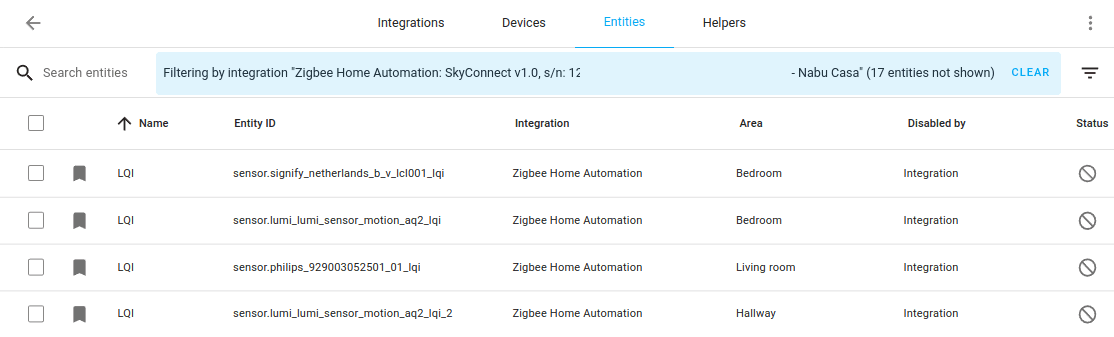
Once configured, the device will appear on your main Overview dashboard, giving you instant, local control over it.
Need help? Email hello@localnode.tech or visit localnode.tech/contact.