LocalNode
How it worksDemoAppsPricingFAQShop now
← All guides
Home/Community/AdGuard Home Parental Controls

AdGuard Home Parental Controls

AdGuard
Beginner
5 min read
Published: May 7, 2026

Was this helpful?

Help us improve our community guides.

In this guide

  • Overview
  • Step 1: Identifying the child's device
  • Step 2: Enforcing Safe Search
  • Step 3: Blocking specific apps
  • Next Steps

Need direct help?

LocalNode Care Plan members get priority remote support.

Email Support →

More in AdGuard

AdGuard Home vs Pi-hole: Why We Chose AdGuard

AdGuard Home vs Pi-hole: Why We Chose AdGuard — Step-by-step guide for your LocalNode.

5 min read

Complete AdGuard Home Setup Guide

Complete AdGuard Home Setup Guide — Step-by-step guide for your LocalNode.

5 min read

Setting Up AdGuard Home on Every Device

Setting Up AdGuard Home on Every Device — Step-by-step guide for your LocalNode.

5 min read
LocalNode

Plug-and-play home server. Your data, your hardware, your rules.

Product

How it worksDemoAppsCommunityPricingFAQ

Support

ContactShipping & ReturnsTrack Order

Legal

Privacy PolicyTerms of ServiceShipping Policy
© 2026 LocalNode. Built for people who value their privacy.Denton, TX · hello@localnode.tech

Beyond just blocking ads, AdGuard Home is an incredibly powerful parental control tool. You can enforce Google Safe Search and block specific apps (like TikTok or YouTube) entirely at the network level.

Overview

The best part of using AdGuard for parental controls is that it happens invisibly on the router level. You don't need to install restrictive MDM software on your child's iPad that they can figure out how to bypass; if they are on the Wi-Fi, the rules apply.

Step 1: Identifying the child's device

If you turn on Parental Controls globally, it will apply to your phone too. We need to create a specific "Client" inside AdGuard for your child's device.

  1. Find the IP address or MAC address of your child's device (you can usually find this in the device's Wi-Fi settings).
  2. Log into the AdGuard Home dashboard.
  3. Go to Settings > Client Settings.
  4. Click Add Client.
  5. Name it (e.g., "Timmy's iPad").
  6. Enter the device's IP address or MAC address in the Identifiers box.
  7. Click Save.

💡 Tip: Using the MAC address is better than the IP address, because IP addresses can change when the router reboots. The MAC address is permanently tied to the physical device.
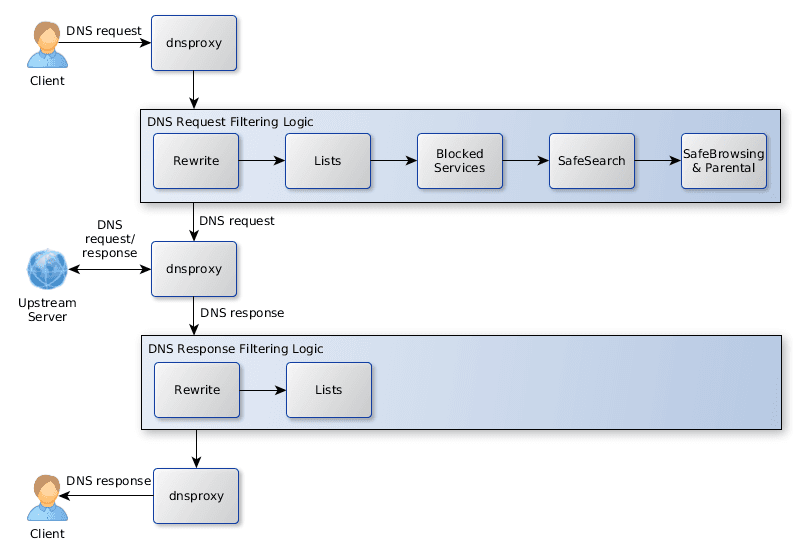
AdGuard Home filtering concepts diagram; client-specific policies are configured under Settings → Clients.
AdGuard Home documentation diagram (AdguardTeam/AdGuardHome, GPL-3.0).

Step 2: Enforcing Safe Search

Safe Search forces Google, Bing, and YouTube to filter out explicit content, regardless of what settings the child has chosen in the browser.

  1. In the Client Settings list, click Edit next to "Timmy's iPad".
  2. Scroll down to the Settings section.
  3. Check the box for Enforce safe search.
  4. Check the box for Block adult websites (this uses a built-in AdGuard list of millions of adult domains).
  5. Click Save.

Step 3: Blocking specific apps

AdGuard makes it a one-click process to block massive platforms like TikTok, Roblox, or Discord.

  1. While still editing the Client ("Timmy's iPad"), scroll down to the Specific services section.
  2. Check the boxes next to any app you want to block entirely.
    • Check TikTok to prevent the app from loading videos.
    • Check YouTube to prevent the site/app from loading entirely.
    • Check Roblox to prevent the game from connecting to servers.
  3. Click Save.

The block takes effect immediately. If the child opens TikTok on their iPad, it will simply say "No internet connection" or fail to load videos, even though the Wi-Fi is connected.

⚠️ Warning: Remember that these rules only apply while the device is connected to your home Wi-Fi. If your teenager simply turns off Wi-Fi and uses 5G cellular data, the AdGuard rules will be bypassed.

Next Steps

  • How to whitelist a site if a blocklist breaks it
  • Using WireGuard to enforce AdGuard on cellular data

Need help? Email hello@localnode.tech or visit localnode.tech/contact.