LocalNode
How it worksDemoAppsPricingFAQShop now
← All guides
Home/Community/Connecting Transmission to Radarr and Sonarr

Connecting Transmission to Radarr and Sonarr

Media
Beginner
5 min read
Published: May 7, 2026

Was this helpful?

Help us improve our community guides.

In this guide

  • Overview
  • Step 1: Verifying Transmission
  • Step 2: Adding the Download Client in Radarr
  • Step 3: Repeating for Sonarr
  • Next Steps

Need direct help?

LocalNode Care Plan members get priority remote support.

Email Support →

More in Media

Adding Your Movie and Tv Collection to Jellyfin

Adding Your Movie and Tv Collection to Jellyfin — Step-by-step guide for your LocalNode.

5 min read

Automating Subtitles with Bazarr

Automating Subtitles with Bazarr — Step-by-step guide for your LocalNode.

5 min read

Best Jellyfin Plugins to Install

Best Jellyfin Plugins to Install — Step-by-step guide for your LocalNode.

5 min read
LocalNode

Plug-and-play home server. Your data, your hardware, your rules.

Product

How it worksDemoAppsCommunityPricingFAQ

Support

ContactShipping & ReturnsTrack Order

Legal

Privacy PolicyTerms of ServiceShipping Policy
© 2026 LocalNode. Built for people who value their privacy.Denton, TX · hello@localnode.tech

⚠️ Advanced Software — requires Radarr & Sonarr setup first

Radarr and Sonarr are brains; they organize and monitor. Transmission is the muscle; it actually does the downloading. We need to link them together so the brains can control the muscle.

Overview

Transmission is a lightweight, highly reliable BitTorrent client. When Radarr finds a movie you want, it sends the magnet link directly to Transmission's API. Transmission downloads the file into a temporary "Downloads" folder. Once finished, it alerts Radarr, which then grabs the file, renames it, and moves it into Jellyfin.

Step 1: Verifying Transmission

First, we just need to ensure Transmission is running and accessible.

  1. Go to your LocalNode dashboard.
  2. Click the Transmission app icon.
  3. A simple web interface should load. It will be empty.
  4. Note the URL in your browser. It should be http://localnode.local:9091.

Step 2: Adding the Download Client in Radarr

Now we tell Radarr where Transmission lives.

  1. Open Radarr from the LocalNode dashboard.
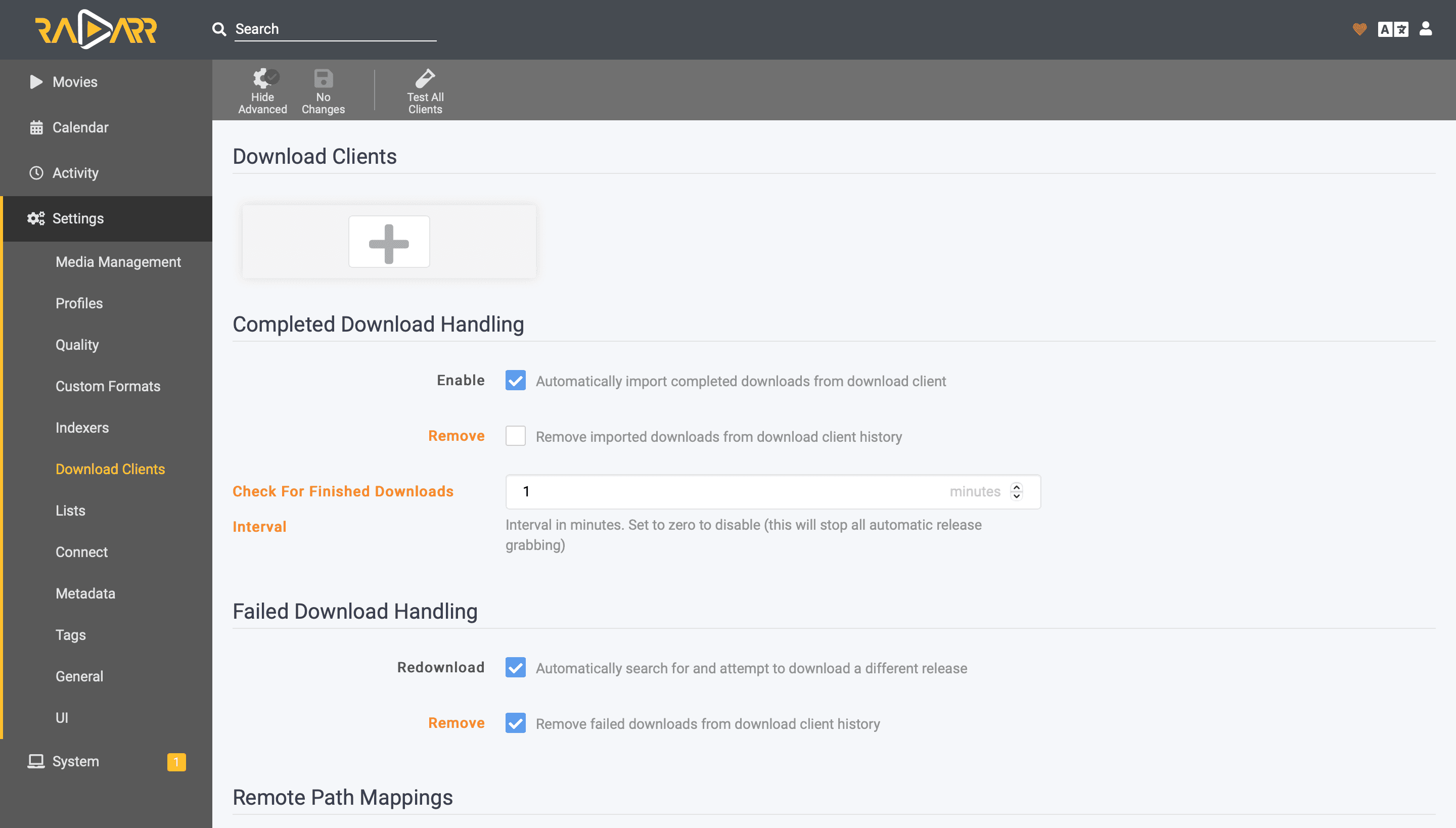
  2. Go to Settings > Download Clients.
  3. Click the large + button.
  4. A list of supported clients will appear. Scroll down and select Transmission.
  5. A configuration window will pop up. Fill it out exactly as follows:
    • Name: Transmission
    • Enable: Checked
    • Host: transmission (Do not use an IP address. Because these apps run in Docker on the LocalNode, they can talk to each other using their container names!)
    • Port: 9091
    • Category: movies (This tells Transmission to tag movie downloads, separating them from TV shows).
  6. At the bottom of the window, click Test.
  7. You should see a green checkmark appear, meaning Radarr successfully pinged Transmission.
  8. Click Save.
Radarr Settings → Download Clients illustrating Transmission-style client entries.
Servarr wiki screenshot (wiki.servarr.com), bundled with Servarr/Wiki alongside GPLv3 Radarr/Sonarr/Prowlarr releases.

💡 Tip: Using transmission as the Host address instead of 192.168.1.50 ensures that even if your router assigns your server a new IP address, the apps will never lose connection to each other.

Step 3: Repeating for Sonarr

You must repeat this exact process in Sonarr, with one tiny difference.

  1. Open Sonarr.
  2. Go to Settings > Download Clients > +.
  3. Select Transmission.
  4. Host: transmission, Port: 9091.
  5. Category: Type tv (This is the only difference!).
  6. Test and Save.

Now both apps are connected to your download client. The final piece of the puzzle is giving them a search engine to find the files in the first place, which we do using Prowlarr.

Next Steps

  • Setting up Prowlarr to feed search results to Radarr and Sonarr

Need help? Email hello@localnode.tech or visit localnode.tech/contact.