LocalNode
How it worksDemoAppsPricingFAQShop now
← All guides
Home/Community/Adding Your Movie and Tv Collection to Jellyfin

Adding Your Movie and Tv Collection to Jellyfin

Media
Beginner
5 min read
Published: May 7, 2026

Was this helpful?

Help us improve our community guides.

In this guide

  • Overview
  • Step 1: Transferring your media files
  • Step 2: Accessing the Jellyfin dashboard
  • Step 3: Creating media libraries
  • Step 4: Scanning for metadata
  • Next Steps

Need direct help?

LocalNode Care Plan members get priority remote support.

Email Support →

More in Media

Automating Subtitles with Bazarr

Automating Subtitles with Bazarr — Step-by-step guide for your LocalNode.

5 min read

Best Jellyfin Plugins to Install

Best Jellyfin Plugins to Install — Step-by-step guide for your LocalNode.

5 min read

Complete Jellyfin Setup Guide for Localnode

Complete Jellyfin Setup Guide for Localnode — Step-by-step guide for your LocalNode.

5 min read
LocalNode

Plug-and-play home server. Your data, your hardware, your rules.

Product

How it worksDemoAppsCommunityPricingFAQ

Support

ContactShipping & ReturnsTrack Order

Legal

Privacy PolicyTerms of ServiceShipping Policy
© 2026 LocalNode. Built for people who value their privacy.Denton, TX · hello@localnode.tech

Jellyfin is your private Netflix. But before you can start streaming, you need to add your personal movie and TV show files so Jellyfin can organize them, download posters, and make them playable.

Overview

Jellyfin does not provide content itself; it reads video files (like .mp4 or .mkv) that you already own and have saved on your LocalNode. You must point Jellyfin to the specific folders where your movies and TV shows are stored.

Step 1: Transferring your media files

If your movies are on a laptop or an external hard drive, you first need to get them onto the LocalNode. You can either plug an external drive directly into the LocalNode, or you can transfer files over your Wi-Fi network using the built-in File Explorer.

  1. Log into your LocalNode dashboard at http://localnode.local.
  2. Open the File Explorer app.
  3. Navigate to the /media/movies or /media/tv folder.
  4. Drag and drop your video files from your computer into the browser window to upload them to the LocalNode.

💡 Tip: For the best results, keep your Movies and TV Shows in completely separate folders. Jellyfin processes them differently.

Step 2: Accessing the Jellyfin dashboard

  1. From the main LocalNode dashboard, click the Jellyfin app icon.
  2. If this is your first time opening Jellyfin, complete the quick setup wizard and create your admin account.
  3. Once logged in, click the menu icon (three lines) in the top left corner.
  4. Select Dashboard under the Administration section.

Step 3: Creating media libraries

Now you need to tell Jellyfin where those folders are.

  1. In the Jellyfin Dashboard sidebar, click Libraries.
  2. Click the big + Add Media Library button.
  3. For Content Type, select Movies (or Shows).
  4. Give the library a Display Name (e.g., "My Movies").
  5. Click the + button next to Folders.
  6. Navigate to the folder where you placed your files (e.g., /media/movies) and click OK.
  7. Scroll to the bottom of the library settings and click OK to save.
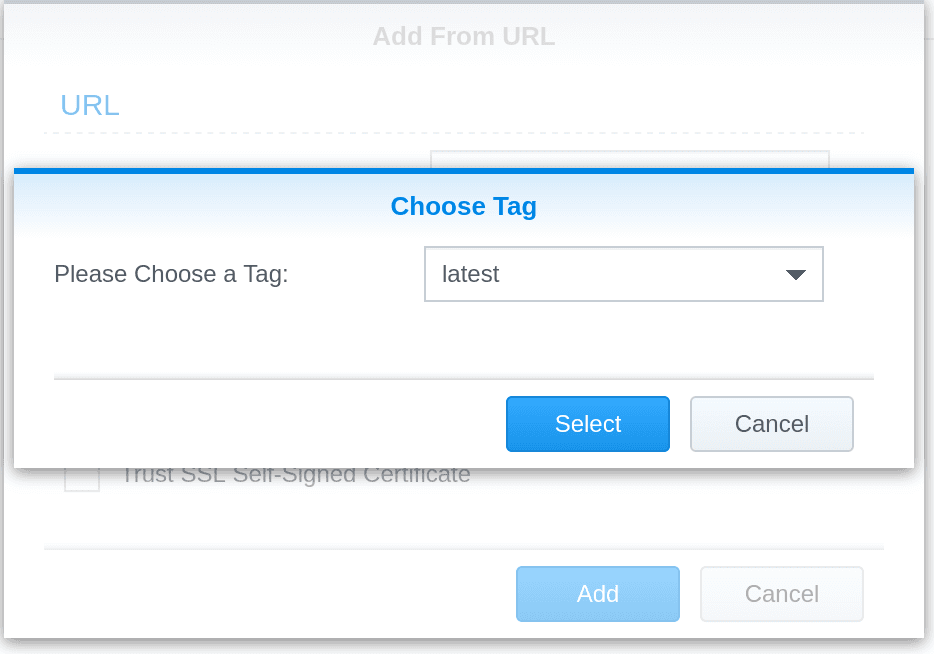
Jellyfin Synology setup screens illustrating library folder selection.
Illustration from archived Jellyfin documentation (GPL-2.0); current Jellyfin UI may differ slightly.

Step 4: Scanning for metadata

As soon as you save the library, Jellyfin will begin scanning the folder. It connects to online databases (like TMDB) to download the correct movie posters, actor lists, summaries, and ratings.

Depending on the size of your collection, this scan could take anywhere from a few minutes to an hour. You will see a progress circle at the top of the dashboard. Once it reaches 100%, your media is ready to watch!

Next Steps

  • Installing the Jellyfin app on every device
  • Organizing your Jellyfin library the right way

Need help? Email hello@localnode.tech or visit localnode.tech/contact.