LocalNode
How it worksDemoAppsPricingFAQShop now
← All guides
Home/Community/Inviting Family to Your Jellyfin Server with Wizarr

Inviting Family to Your Jellyfin Server with Wizarr

Media
Beginner
5 min read
Published: May 7, 2026

Was this helpful?

Help us improve our community guides.

In this guide

  • Overview
  • Step 1: Accessing Wizarr
  • Step 2: Connecting Wizarr to Jellyfin
  • Step 3: Creating an invite link
  • Step 4: What your family sees
  • Next Steps

Need direct help?

LocalNode Care Plan members get priority remote support.

Email Support →

More in Media

Adding Your Movie and Tv Collection to Jellyfin

Adding Your Movie and Tv Collection to Jellyfin — Step-by-step guide for your LocalNode.

5 min read

Automating Subtitles with Bazarr

Automating Subtitles with Bazarr — Step-by-step guide for your LocalNode.

5 min read

Best Jellyfin Plugins to Install

Best Jellyfin Plugins to Install — Step-by-step guide for your LocalNode.

5 min read
LocalNode

Plug-and-play home server. Your data, your hardware, your rules.

Product

How it worksDemoAppsCommunityPricingFAQ

Support

ContactShipping & ReturnsTrack Order

Legal

Privacy PolicyTerms of ServiceShipping Policy
© 2026 LocalNode. Built for people who value their privacy.Denton, TX · hello@localnode.tech

Jellyfin allows you to share your movie collection with your friends and family. Instead of manually typing out usernames and passwords for everyone, you can use the pre-installed Wizarr app to generate simple invite links.

Overview

Wizarr acts as an automated receptionist for your server. You generate a unique link, text it to your family member, and when they click it, they are walked through a simple setup screen where they choose their own username and password. Wizarr then automatically creates their account in Jellyfin and gives them instructions on how to download the app.

Step 1: Accessing Wizarr

  1. Go to your LocalNode dashboard at http://localnode.local.
  2. Click on the Wizarr app icon to open it.
  3. If this is your first time, you will be prompted to create an administrator account for Wizarr. This is separate from your Jellyfin account. Create a secure username and password.

💡 Tip: You can also access Wizarr directly from any device by navigating to http://localnode.local:5690.

Step 2: Connecting Wizarr to Jellyfin

Wizarr needs an API key so it has permission to create accounts inside your Jellyfin server.

  1. In a new browser tab, open Jellyfin and log in with your admin account.
  2. Go to Dashboard > API Keys (under the Advanced section).
  3. Click the + button to create a new key. Name it "Wizarr".
  4. Copy the long string of characters that it generates.
  5. Switch back to the Wizarr tab.
  6. Go to the Wizarr Settings and find the Media Server section.
  7. Select Jellyfin.
  8. For the Server URL, enter: http://localnode.local:8096
  9. Paste the API key you copied earlier and click Save.
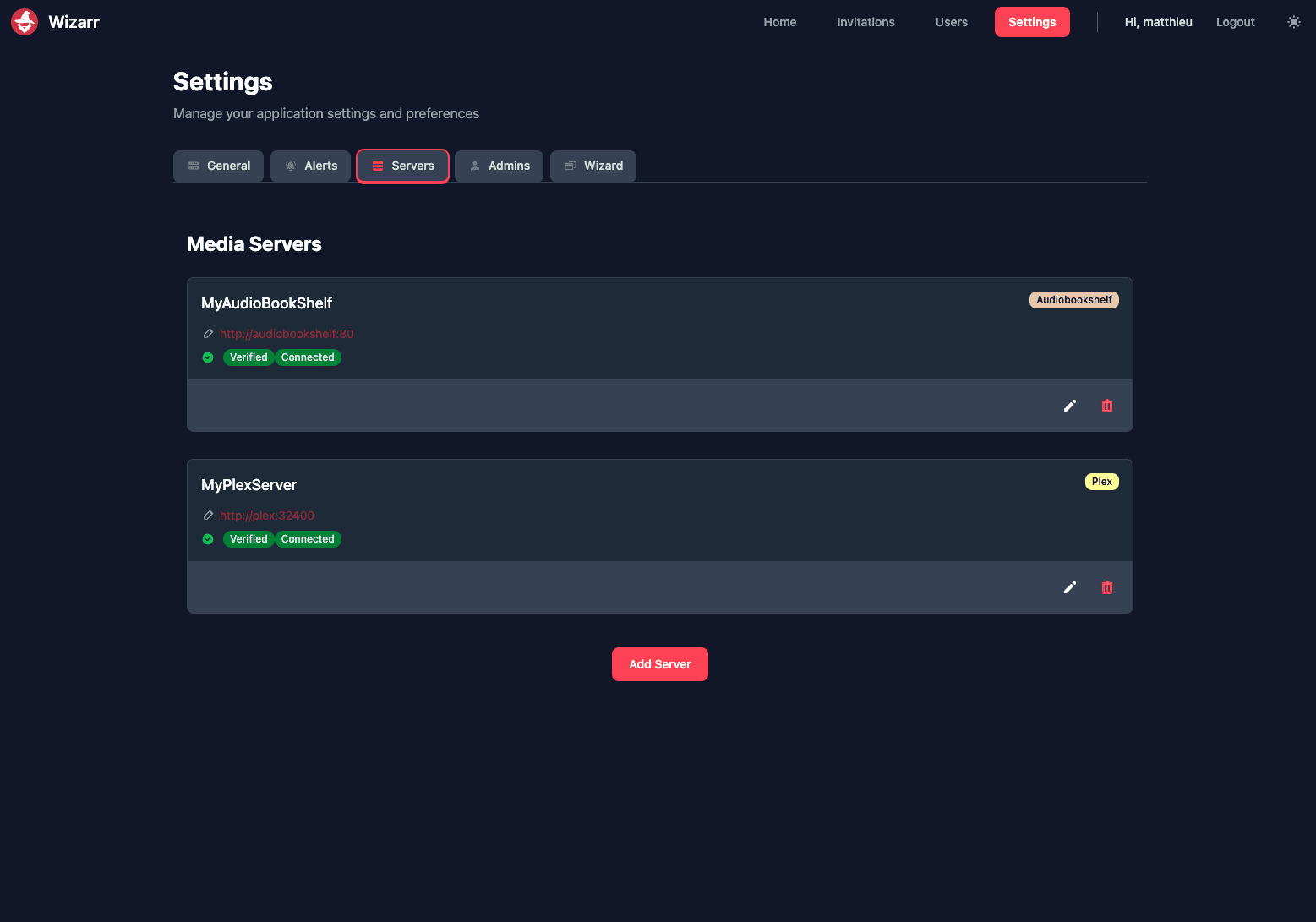
Wizarr administrative UI for editing connected media servers such as Jellyfin.
Wizarr screenshot (wizarrrr/wizarr, MIT).

Step 3: Creating an invite link

  1. In the Wizarr sidebar, click on Invitations.
  2. Click Create Invitation.
  3. You can customize the link: give it a specific expiration date, or limit how many times it can be used (e.g., 1 use only so your friend can't forward it to others).
  4. Select which Jellyfin libraries this invite should grant access to (e.g., allow "Movies" but block "Home Videos").
  5. Click Generate.
  6. Copy the link and text or email it to your family member.

⚠️ Warning: If your family members are outside your home network, the localnode.local link will not work for them. You must have a VPN or reverse proxy set up so they can securely access your server remotely.

Step 4: What your family sees

When your family member clicks the link, they will see a beautiful welcome screen:

  • They will be prompted to create their own username and password.
  • Once submitted, Wizarr instantly talks to Jellyfin and builds their account.
  • Wizarr then shows them a screen with download links for the Jellyfin app on iOS, Android, Roku, etc., along with the Server URL they need to type in.

Next Steps

  • Setting up Jellyfin parental controls
  • Setting up multiple users on Jellyfin

Need help? Email hello@localnode.tech or visit localnode.tech/contact.