LocalNode
How it worksDemoAppsPricingFAQShop now
← All guides
Home/Community/Jellyfin Hardware Transcoding Setup

Jellyfin Hardware Transcoding Setup

Media
Beginner
5 min read
Published: May 7, 2026

Was this helpful?

Help us improve our community guides.

In this guide

  • Overview
  • Prerequisites
  • Step 1: Enabling Intel QuickSync
  • Step 2: Advanced format options
  • Step 3: HDR Tone-mapping
  • Step 4: Verifying it works
  • Next Steps

Need direct help?

LocalNode Care Plan members get priority remote support.

Email Support →

More in Media

Adding Your Movie and Tv Collection to Jellyfin

Adding Your Movie and Tv Collection to Jellyfin — Step-by-step guide for your LocalNode.

5 min read

Automating Subtitles with Bazarr

Automating Subtitles with Bazarr — Step-by-step guide for your LocalNode.

5 min read

Best Jellyfin Plugins to Install

Best Jellyfin Plugins to Install — Step-by-step guide for your LocalNode.

5 min read
LocalNode

Plug-and-play home server. Your data, your hardware, your rules.

Product

How it worksDemoAppsCommunityPricingFAQ

Support

ContactShipping & ReturnsTrack Order

Legal

Privacy PolicyTerms of ServiceShipping Policy
© 2026 LocalNode. Built for people who value their privacy.Denton, TX · hello@localnode.tech

⚠️ Advanced — requires technical knowledge

If a device cannot play a video format naturally, Jellyfin must convert it on the fly (transcoding). Doing this with the CPU will bring any server to its knees. This guide ensures your LocalNode's GPU is handling the heavy lifting.

Overview

The LocalNode utilizes an Intel processor equipped with Intel QuickSync Video (QSV). QSV is a dedicated piece of silicon on the chip built specifically for encoding and decoding video. When configured correctly, your LocalNode can easily transcode multiple 4K streams simultaneously without breaking a sweat.
Prerequisites

  • Admin access to your Jellyfin dashboard.
  • A test device that specifically requires transcoding (like forcing playback to 720p 4Mbps on your smartphone) so you can test the results.

Step 1: Enabling Intel QuickSync

  1. Log into the Jellyfin dashboard from your computer.
  2. Go to Administration > Dashboard.
  3. In the sidebar, click Playback.
  4. Under "Hardware acceleration", you will see a dropdown menu. By default, it may be set to "None".
  5. Change the dropdown to Intel QuickSync (QSV). Do not select VAAPI; QSV is much more efficient on Intel hardware.
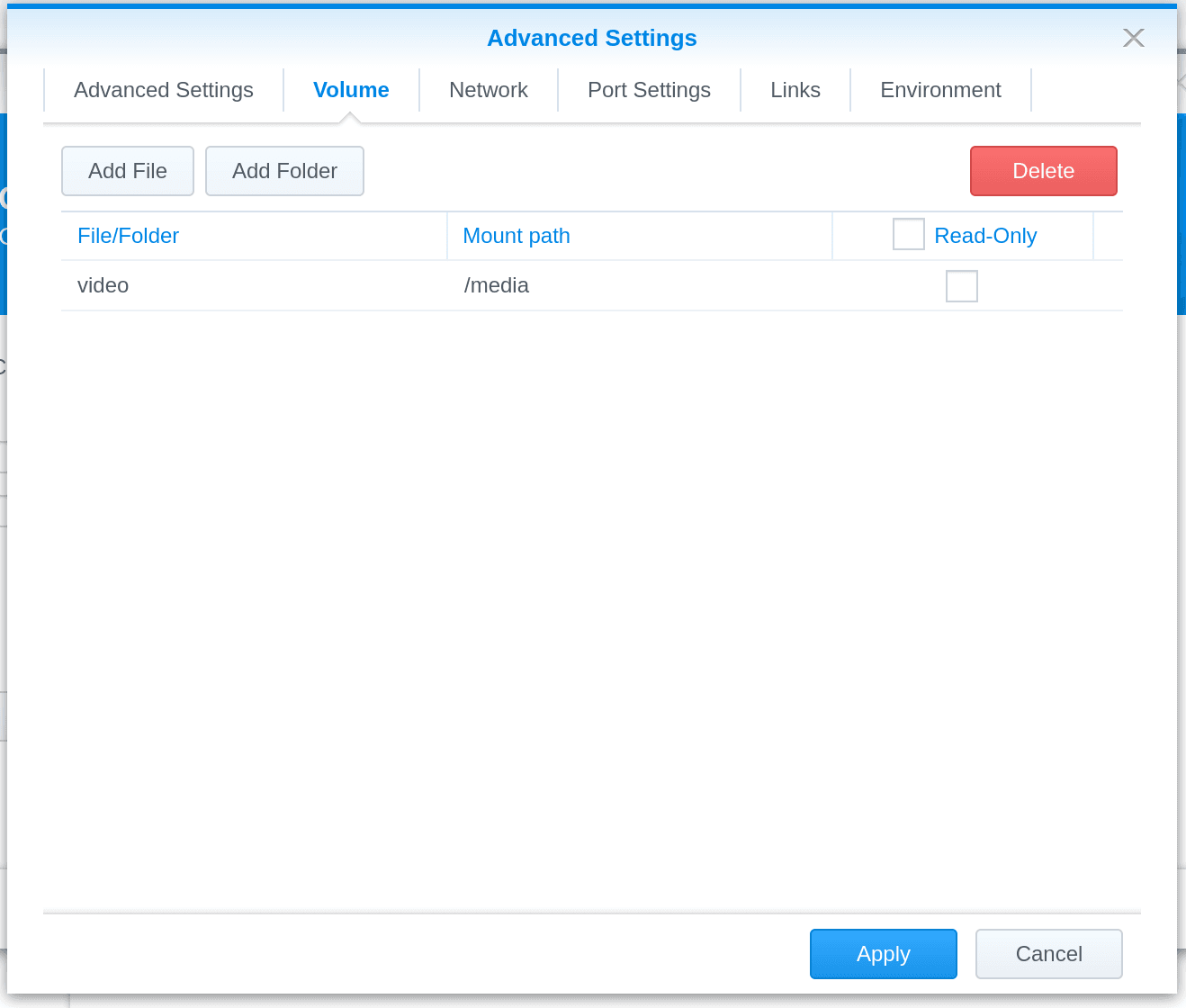
Jellyfin Synology installation screenshot illustrating advanced server configuration comparable to transcoding settings.
Illustration from archived Jellyfin documentation (GPL-2.0); current Jellyfin UI may differ slightly.

Step 2: Advanced format options

Once QSV is selected, a massive list of checkboxes will appear. These tell Jellyfin exactly which video formats the GPU is allowed to process.

  1. Check the boxes for all decoding formats: H264, HEVC, MPEG2, VC1, VP9, AV1, and HEVC 10bit. The LocalNode processor supports all of these in hardware.
  2. Ensure Enable hardware encoding is checked. This allows the GPU to write the new file as well as read the old one.
  3. Check the box for Enable Intel Low-Power H.264 hardware encoder. This significantly reduces heat and power consumption.
  4. Leave the "Hardware decoding/encoding device" fields blank or set to Auto. The server will find the iGPU automatically.

Step 3: HDR Tone-mapping

If you transcode a 4K HDR movie to play on an old 1080p SDR screen, the colors will look completely washed out and grey unless you enable tone-mapping.

  1. Scroll further down the Playback page.
  2. Check the box for Enable Tone mapping.
  3. Check the box for Enable VPP Tone mapping. VPP uses Intel's hardware pipeline to do the color conversion, making it virtually free in terms of performance cost.
  4. Scroll to the very bottom of the page and click Save.

💡 Tip: Hardware tone mapping requires the Jellyfin Docker container to have specific OpenCL drivers passed through to it. The LocalNode operating system is pre-configured with these drivers out of the box, so VPP tone mapping will work immediately.

Step 4: Verifying it works

You must verify the GPU is actually doing the work, otherwise you might experience terrible buffering later when you try to watch a movie.

  1. Open the Jellyfin app on your smartphone and start playing a movie.
  2. In the video player, click the gear icon and change the quality to something low, like "720p - 4 Mbps". This forces the server to transcode.
  3. On your computer, look at the main Jellyfin Dashboard.
  4. Under "Active Devices", find your smartphone session and click the info icon (i).
  5. Look for the word Transcoding. Right next to or below it, it should explicitly say (QSV). If it just says software or FFMpeg, your hardware acceleration is not working.

Next Steps

  • Setting up 4K streaming on Jellyfin
  • Jellyfin buffering troubleshooting guide

Need help? Email hello@localnode.tech or visit localnode.tech/contact.