Connecting Nextcloud to External Storage
Files
Beginner
5 min read
Published: May 7, 2026
Was this helpful?
Help us improve our community guides.
Help us improve our community guides.
Collaborating on Documents in Nextcloud — Step-by-step guide for your LocalNode.
Setting Up Nextcloud for the First Time — Step-by-step guide for your LocalNode.
Setting Up Nextcloud Talk for Private Family Chat — Step-by-step guide for your LocalNode.
⚠️ Advanced — requires correct file paths
By default, Nextcloud stores all its files inside a hidden database structure on your internal drive. If you want Nextcloud to read files from a USB drive or your Jellyfin media folder, you must use the External Storage plugin.
The External Storage plugin allows you to take any folder on the LocalNode (like /media/movies or an external drive mounted at /mnt/storage/BackupDrive) and mount it as a visible folder inside the Nextcloud web interface. This is how you allow Nextcloud to interact with files used by other apps.
Now we must tell Nextcloud exactly where the drive is located.
/mnt/storage/MyUSB).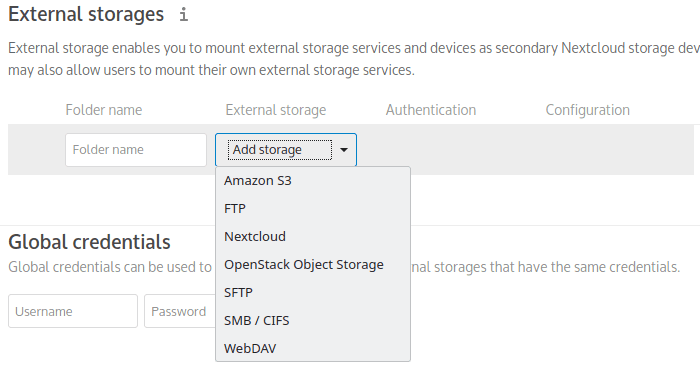
By default, when you mount a drive, only the Admin can see it.
Now, if you return to the main Files app, you will see a folder named "USB Drive" with a small external link icon on it. You can interact with these files exactly as if they were natively inside Nextcloud.
💡 Tip: If you add files to the external drive via a different app (like dragging movies in via File Explorer), they might not immediately show up in Nextcloud. Nextcloud must scan external drives periodically to detect new files.
Need help? Email hello@localnode.tech or visit localnode.tech/contact.