LocalNode
How it worksDemoAppsPricingFAQShop now
← All guides
Home/Community/Setting Up Nextcloud for the First Time

Setting Up Nextcloud for the First Time

Files
Beginner
5 min read
Published: May 7, 2026

Was this helpful?

Help us improve our community guides.

In this guide

  • Overview
  • Step 1: Administrator Setup
  • Step 2: Creating family accounts
  • Step 3: Installing the Desktop App
  • Next Steps

Need direct help?

LocalNode Care Plan members get priority remote support.

Email Support →

More in Files

Collaborating on Documents in Nextcloud

Collaborating on Documents in Nextcloud — Step-by-step guide for your LocalNode.

5 min read

Connecting Nextcloud to External Storage

Connecting Nextcloud to External Storage — Step-by-step guide for your LocalNode.

5 min read

Setting Up Nextcloud Talk for Private Family Chat

Setting Up Nextcloud Talk for Private Family Chat — Step-by-step guide for your LocalNode.

5 min read
LocalNode

Plug-and-play home server. Your data, your hardware, your rules.

Product

How it worksDemoAppsCommunityPricingFAQ

Support

ContactShipping & ReturnsTrack Order

Legal

Privacy PolicyTerms of ServiceShipping Policy
© 2026 LocalNode. Built for people who value their privacy.Denton, TX · hello@localnode.tech

Nextcloud is your own private Google Drive and Dropbox. It allows you to sync files across all your devices, share documents with family, and edit files right in the browser.

Overview

While Nextcloud is incredibly powerful (it even includes calendars and video calling), its primary function is file storage. When you drop a PDF into the Nextcloud folder on your laptop, it instantly syncs to your LocalNode, making it immediately available on your phone.

Step 1: Administrator Setup

The first time you launch Nextcloud, you need to create the master account.

  1. Go to your LocalNode dashboard at http://localnode.local.
  2. Click the Nextcloud app icon.
  3. You will be greeted by an admin creation screen. Enter a secure username and password.
  4. Click Install. (This may take 1-2 minutes as it configures the internal database).
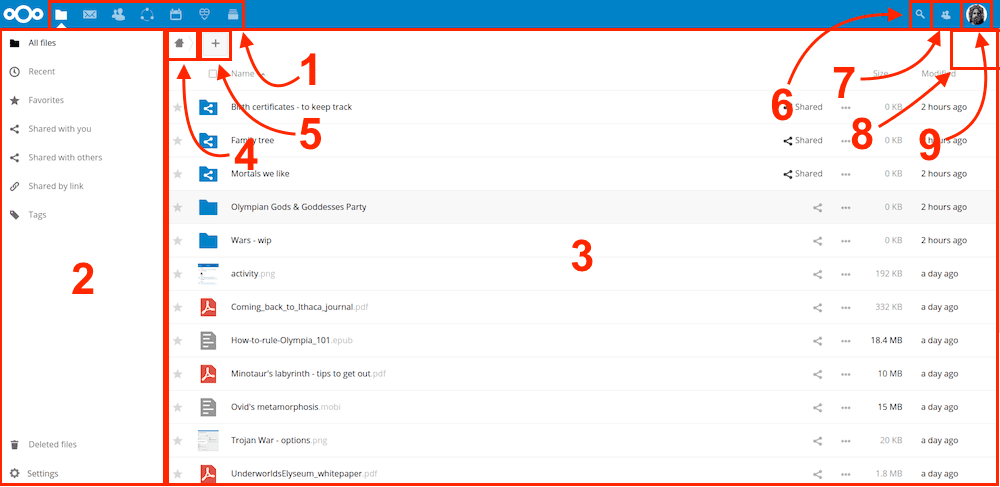
  5. Once finished, you will be taken to the Nextcloud dashboard, which features a few sample documents and photos.
Nextcloud Files app overview showing folders and the classic web layout.
Nextcloud documentation screenshot (nextcloud/documentation, AGPL / CC BY-SA depending on section).

Step 2: Creating family accounts

Just like Google Drive, everyone in your family should have their own private storage space.

  1. Click your profile icon in the top right corner.
  2. Select Users from the dropdown menu.
  3. Click the New user button at the top left.
  4. Enter a username and password for your family member.
  5. (Optional) Set a Storage Quota (e.g., 50 GB) if you don't want them filling up the LocalNode hard drive.
  6. Click the checkmark to save.

💡 Tip: You can create "Groups" (like "Family" or "Parents") in the Users menu. This makes it very easy to share a document with everyone at once.

Step 3: Installing the Desktop App

The best way to use Nextcloud is via the desktop sync client, which integrates directly into Windows Explorer or Mac Finder.

  1. Go to nextcloud.com/install and download the desktop client for Windows or Mac.
  2. Install and launch the app.
  3. Click Log In.
  4. Enter your Server Address: http://localnode.local:8080 (Make sure to include the port if your LocalNode requires it, or just use the URL provided in your main dashboard).
  5. Your browser will open and ask you to authorize the app. Click "Grant access".
  6. Choose what you want to sync. By default, it will create a folder called "Nextcloud" in your user directory and download everything.

⚠️ Warning: If you are away from home, the desktop app will pause syncing unless you connect to your WireGuard VPN.

Next Steps

  • Configuring advanced sync rules
  • Sharing files securely via public links

Need help? Email hello@localnode.tech or visit localnode.tech/contact.