LocalNode
How it worksDemoAppsPricingFAQShop now
← All guides
Home/Community/Setting Up Nextcloud Talk for Private Family Chat

Setting Up Nextcloud Talk for Private Family Chat

Files
Beginner
5 min read
Published: May 7, 2026

Was this helpful?

Help us improve our community guides.

In this guide

  • Overview
  • Step 1: Installing Nextcloud Talk
  • Step 2: Starting a conversation
  • Step 3: Making a video call
  • Next Steps

Need direct help?

LocalNode Care Plan members get priority remote support.

Email Support →

More in Files

Collaborating on Documents in Nextcloud

Collaborating on Documents in Nextcloud — Step-by-step guide for your LocalNode.

5 min read

Connecting Nextcloud to External Storage

Connecting Nextcloud to External Storage — Step-by-step guide for your LocalNode.

5 min read

Setting Up Nextcloud for the First Time

Setting Up Nextcloud for the First Time — Step-by-step guide for your LocalNode.

5 min read
LocalNode

Plug-and-play home server. Your data, your hardware, your rules.

Product

How it worksDemoAppsCommunityPricingFAQ

Support

ContactShipping & ReturnsTrack Order

Legal

Privacy PolicyTerms of ServiceShipping Policy
© 2026 LocalNode. Built for people who value their privacy.Denton, TX · hello@localnode.tech

If you want a completely private alternative to WhatsApp or iMessage for your family, Nextcloud Talk provides secure chat and video calling that never touches a corporate server.

Overview

Nextcloud Talk is an official plugin for Nextcloud. It allows users on your LocalNode to send text messages, share files directly from their Nextcloud storage, and initiate high-quality video calls. All data is end-to-end encrypted and routed exclusively through your home network.

Step 1: Installing Nextcloud Talk

  1. Log into Nextcloud with your Admin account.
  2. Click your profile picture in the top right and select Apps.
  3. In the left sidebar, click on the search icon (magnifying glass) and type "Talk".
  4. Find the official Talk app published by Nextcloud and click Download and enable.
  5. Refresh the page. You will now see a new chat bubble icon in your top navigation bar.

Step 2: Starting a conversation

  1. Click the Talk icon in the top navigation bar.
  2. Click the + button in the left sidebar to create a new conversation.
  3. Give the conversation a name (e.g., "Family Chat").
  4. Search for the names of the family members you want to add.
  5. Click Create conversation.

You can now chat just like you would in WhatsApp. If you type / in the chat box, you can access commands to attach files directly from your Nextcloud drive, share your location, or create polls.
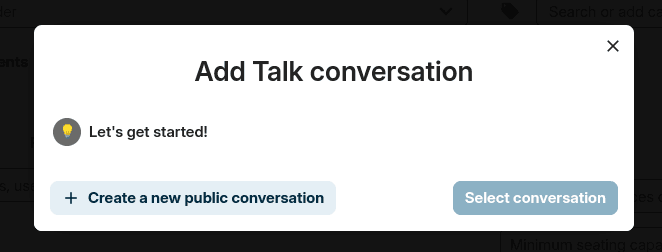
Nextcloud Talk prompt for adding or joining a conversation room.
Nextcloud documentation screenshot (nextcloud/documentation, AGPL / CC BY-SA depending on section).

Step 3: Making a video call

Video calling works flawlessly within the browser or the mobile app.

  1. Open any 1-on-1 or group conversation.
  2. Click the Start Call video camera icon in the top right corner.
  3. Your browser will ask for permission to use your camera and microphone. Click Allow.
  4. Other participants will receive a ring notification on their devices and can click Join.

💡 Tip: For the best experience, have your family download the dedicated "Nextcloud Talk" app from the iOS App Store or Google Play Store. It handles push notifications for incoming calls much better than the standard Nextcloud Files app.

⚠️ Warning: Video calls between 2-4 people work perfectly because they use peer-to-peer connections. If you try to host a video call with 5 or more people, your LocalNode will require a separate "High Performance Backend" server, which requires advanced command-line configuration.

Next Steps

  • Sharing files securely
  • Setting up a VPN so Talk works away from home

Need help? Email hello@localnode.tech or visit localnode.tech/contact.