LocalNode
How it worksDemoAppsPricingFAQShop now
← All guides
Home/Community/Sharing Files with Nextcloud

Sharing Files with Nextcloud

Files
Beginner
5 min read
Published: May 7, 2026

Was this helpful?

Help us improve our community guides.

In this guide

  • Overview
  • Sharing internally with family
  • Creating public share links
  • Creating a "File Drop" folder
  • Next Steps

Need direct help?

LocalNode Care Plan members get priority remote support.

Email Support →

More in Files

Collaborating on Documents in Nextcloud

Collaborating on Documents in Nextcloud — Step-by-step guide for your LocalNode.

5 min read

Connecting Nextcloud to External Storage

Connecting Nextcloud to External Storage — Step-by-step guide for your LocalNode.

5 min read

Setting Up Nextcloud for the First Time

Setting Up Nextcloud for the First Time — Step-by-step guide for your LocalNode.

5 min read
LocalNode

Plug-and-play home server. Your data, your hardware, your rules.

Product

How it worksDemoAppsCommunityPricingFAQ

Support

ContactShipping & ReturnsTrack Order

Legal

Privacy PolicyTerms of ServiceShipping Policy
© 2026 LocalNode. Built for people who value their privacy.Denton, TX · hello@localnode.tech

Nextcloud makes sending massive files incredibly easy. Instead of hitting attachment limits in email, you can simply generate a secure link pointing directly to the file on your LocalNode.

Overview

There are two ways to share in Nextcloud: internally (with other accounts on your server) and externally (via a public link that anyone can click).

Sharing internally with family

If your spouse has an account on the LocalNode, you can share a folder directly to their dashboard.

  1. Open the Nextcloud web interface.
  2. Hover over the file or folder you want to share.
  3. Click the Share icon (three dots connected by lines).
  4. In the sidebar that opens, type your spouse's name in the "Name, email, or Federated Cloud ID" box.
  5. Select their name from the dropdown.
  6. By default, they have full edit permissions. If you only want them to view it, click the three dots next to their name and uncheck "Allow editing".

The folder will instantly appear in their Nextcloud app.
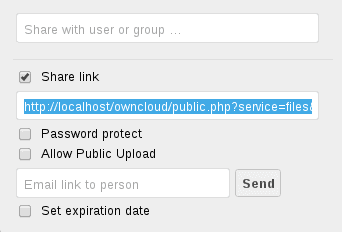
Nextcloud sharing sidebar illustrating internal shares between users.
Nextcloud documentation screenshot (nextcloud/documentation, AGPL / CC BY-SA depending on section).

Creating public share links

If you want to send a 5GB video file to a client or friend who does not have an account, you use a public link.

  1. Click the Share icon next to the file.
  2. Click the + icon next to "Share link".
  3. A public link is instantly generated and copied to your clipboard.

Securing the link:

Click the three dots next to the newly created link to add security rules:

  • Password protect: The recipient must enter a password before downloading.
  • Set expiration date: The link will automatically self-destruct after 7 days.
  • Hide download: They can view the video/PDF in their browser, but the download button is removed.

⚠️ Warning: If you are sending public links to people outside your home, you must have Dynamic DNS and Port Forwarding set up so the link actually points to your router, not just localnode.local.

Creating a "File Drop" folder

File Drop is an amazing feature that lets other people upload massive files to you, without seeing anything else on your server.

  1. Create an empty folder (e.g., "Wedding Video Uploads").
  2. Click the Share icon next to the folder.
  3. Click the + next to "Share link".
  4. Click the three dots next to the link.
  5. Check the box for File drop (upload only).
  6. Send the link to your friend.

When they click the link, they will see a beautiful, secure page where they can drag and drop files directly onto your LocalNode hard drive. They cannot view the files after they upload them.

💡 Tip: You can also set the folder to "Allow upload and editing", which creates a public Dropbox-style folder where anyone with the link can add, delete, and view files.

Next Steps

  • Collaborating on documents

Need help? Email hello@localnode.tech or visit localnode.tech/contact.